Get started with ChatHub
Connect your messaging channels, support customers in one inbox, and set up automations. Find the guide for the task you need to complete.
Start with Add channels, then follow the Inbox guide to receive and reply to messages. If your channels are already connected, go straight to the Inbox guide.
What can you do with ChatHub?#
ChatHub brings conversations from personal Zalo, personal Telegram, Telegram Bot, and your website Chat Plugin into one inbox. Staff can review history, reply to customers, add internal notes, and assign conversations to a teammate.
Once you are comfortable handling messages, use quick replies, organize customers with labels and custom fields, or build automation rules and multi-step workflows. These docs help administrators configure ChatHub and staff use it in their daily work.
Start with your task#
Choose the task you want to complete. Each link below opens a guide with instructions and screenshots.
Connect channels
Add Zalo, Telegram, or a website chat widget to receive messages in ChatHub.
Read guideHandle conversations
Find customers, reply, add notes, and work with teammates in the Inbox.
Read guideAutomate replies
Create rules with events and conditions to handle recurring requests.
Read guideMore settings and tools
Find your way around the docs#
- 1
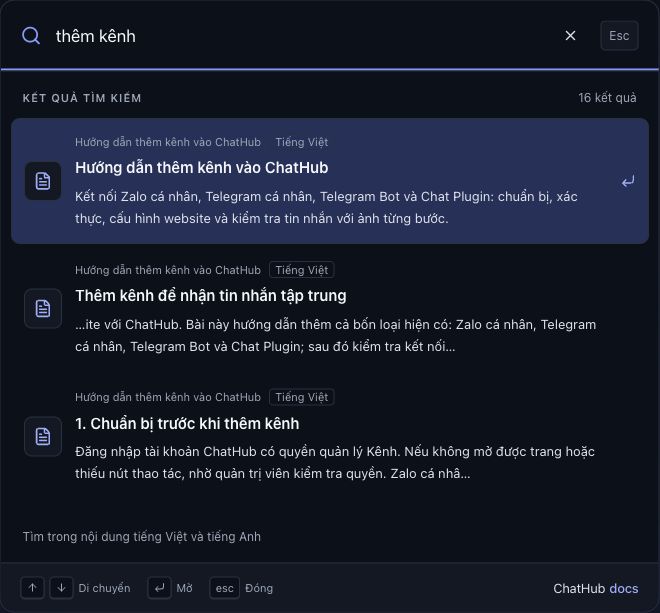
Search by feature name
Click Search documentation at the top or press Ctrl+K / ⌘K. Enter a term such as “add channels”, “inbox”, or “workflow”, then select a result to open a guide or a specific section.
- 2
Check prerequisites and follow the steps
Review the required permissions and information at the beginning of each guide. Match the buttons, screenshots, and captions to your interface; use the table of contents to jump to a section.
- 3
Choose your language
Click VI or EN at the top to open the translation of the current guide. Screenshots may show the Vietnamese interface; captions are available in both languages.
Connect your first channel#
Open the Add channels guide, choose your channel type, and follow its connection steps. Once the channel is active, go to the Inbox to check incoming messages and start handling conversations.
Add channels